
There are different ways to place an existing file in another folder of your Kontainer. Let’s have a look:
Select a new folder
Quickly move files around in your Kontainer by right-clicking on a single file or on a selection of files and choosing Move.
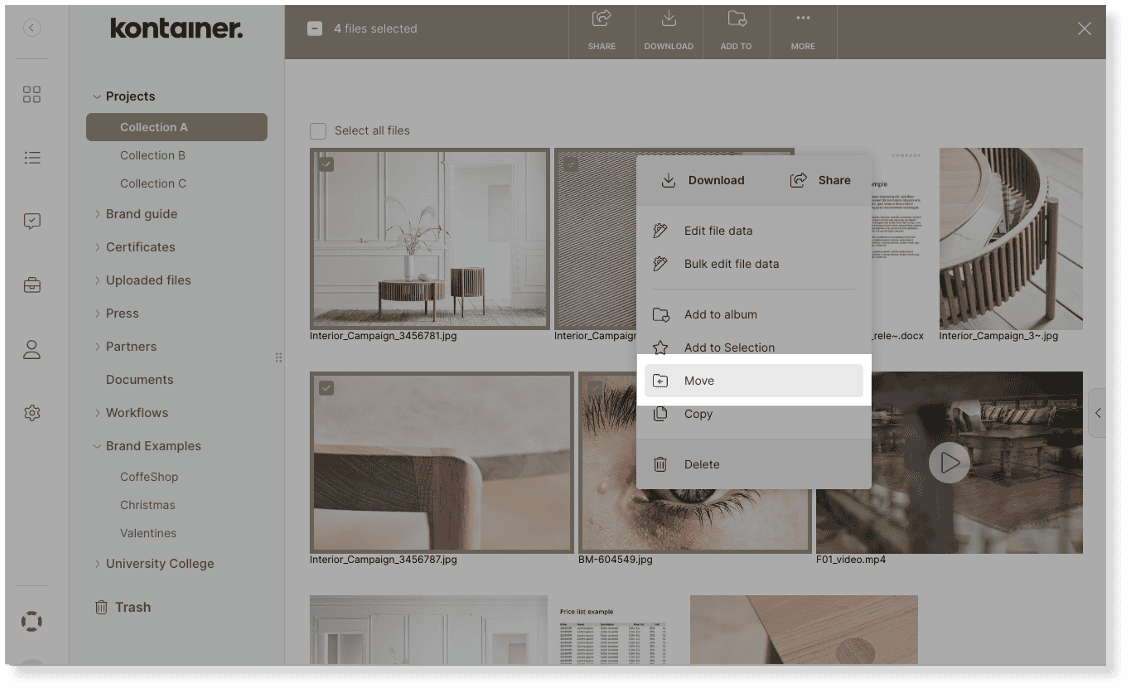
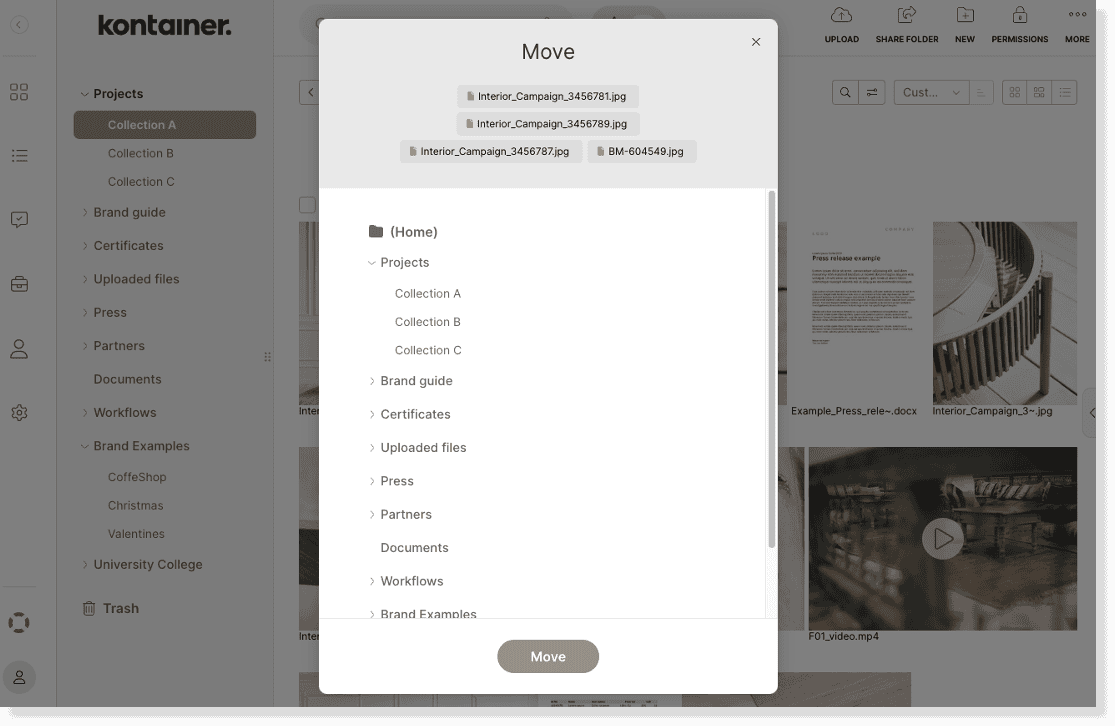
Then select the new desired folder placement and confirm by clicking Move.
Drag & Drop
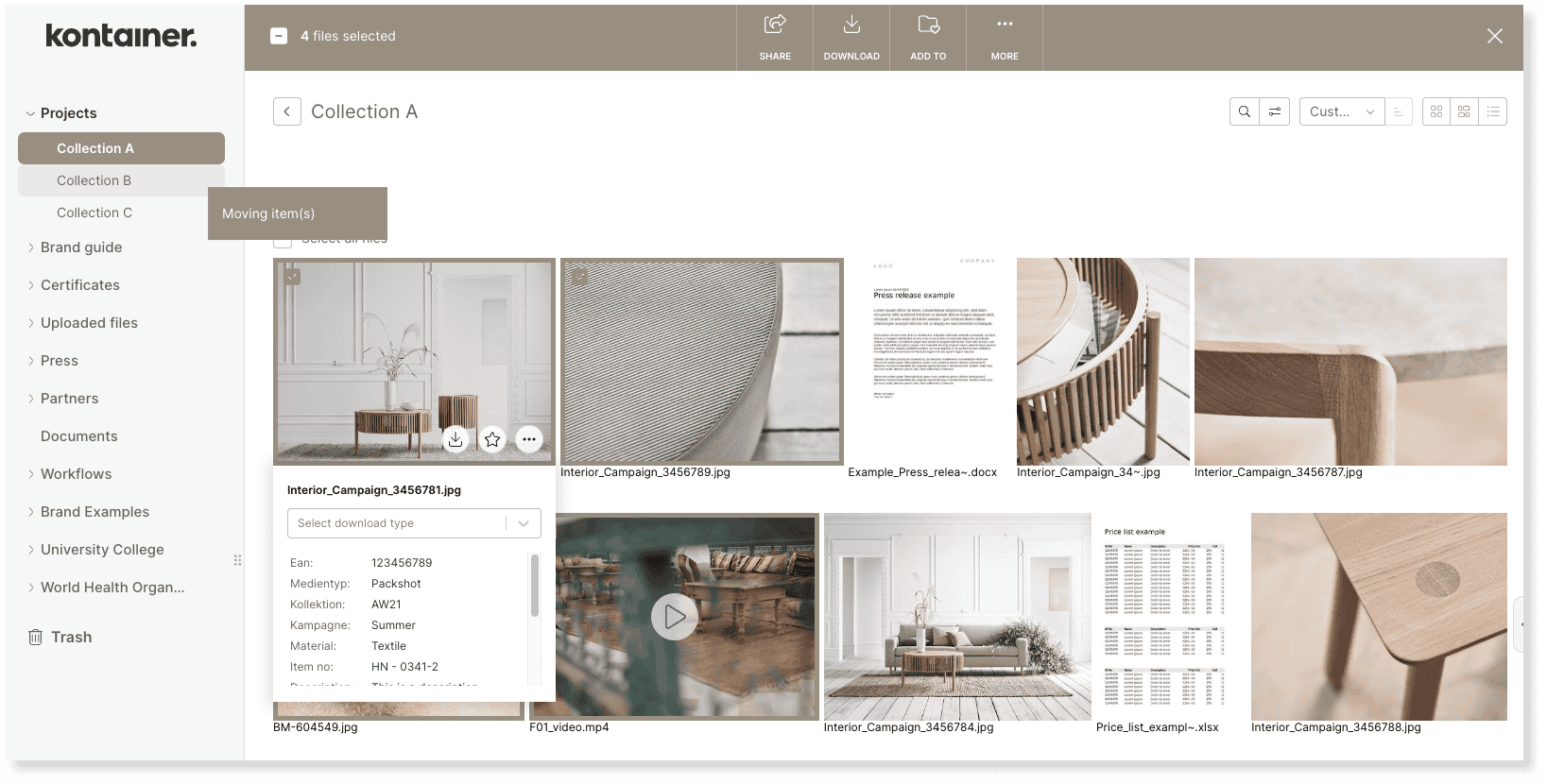
Alternatively, you can drag and drop files from the folder view on the right-hand side and into a new folder in the folder structure on the left-hand side.
Album Folders
If you want to keep an original file in the current folder but also want the file to be placed in another new folder, you do not need to make a copy of the file or upload the file again.
Just create a new Album Folder and move the file into this new album folder.
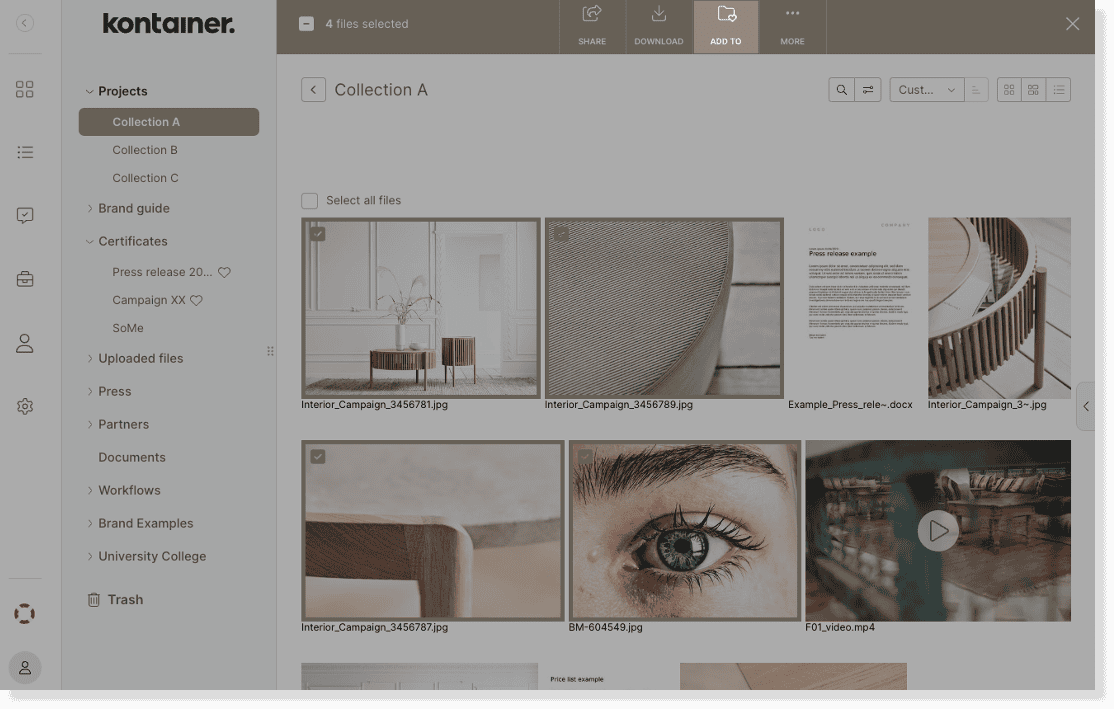
In that way, you create a redirect or alias of the original file in the new folder while keeping it in the current folder.
Read more about album folders here.
