
Download individual files, selections of files or entire folders – quickly and easily through Kontainer.
In the following, we will look at the different ways of downloading assets directly from your Kontainer.
At the end of this guide, we’ll look specifically at how to compress images. Jump ahead?
Download options
In short, you can download files in the Kontainer in three different ways:
- Direct download of original files and entire folders
- Custom download
- Use download templates
Let’s first look at where you can find and access these different options.
How to access download options
On hover
Hover over a file’s thumbnail and find the different download options in the drop-down menu.
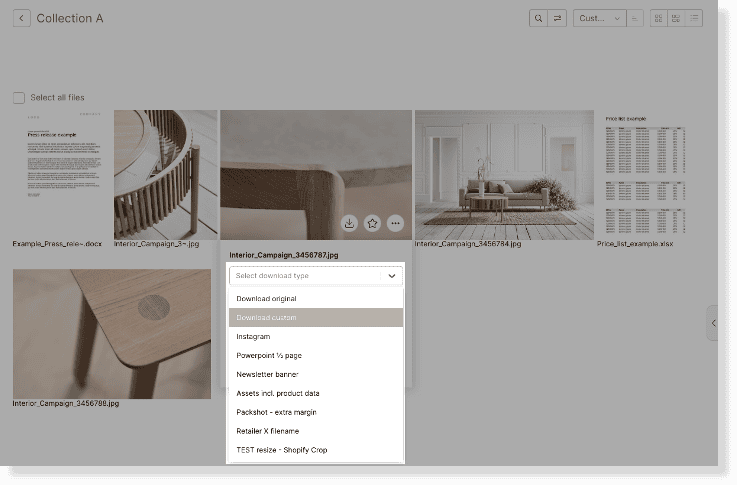
In file selection
Having selected one file or multiple files, a ribbon menu at the top will appear. Click on download to see the different download options.
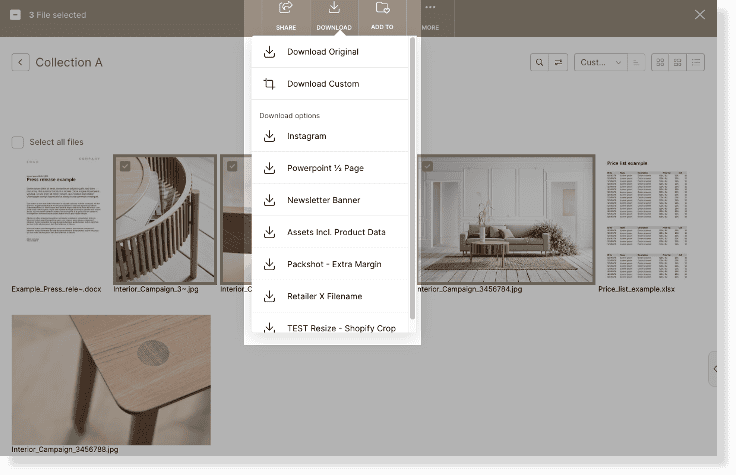
In file preview
In the gallery mode/preview of files, click the download icon in the top banner to access the different download options.
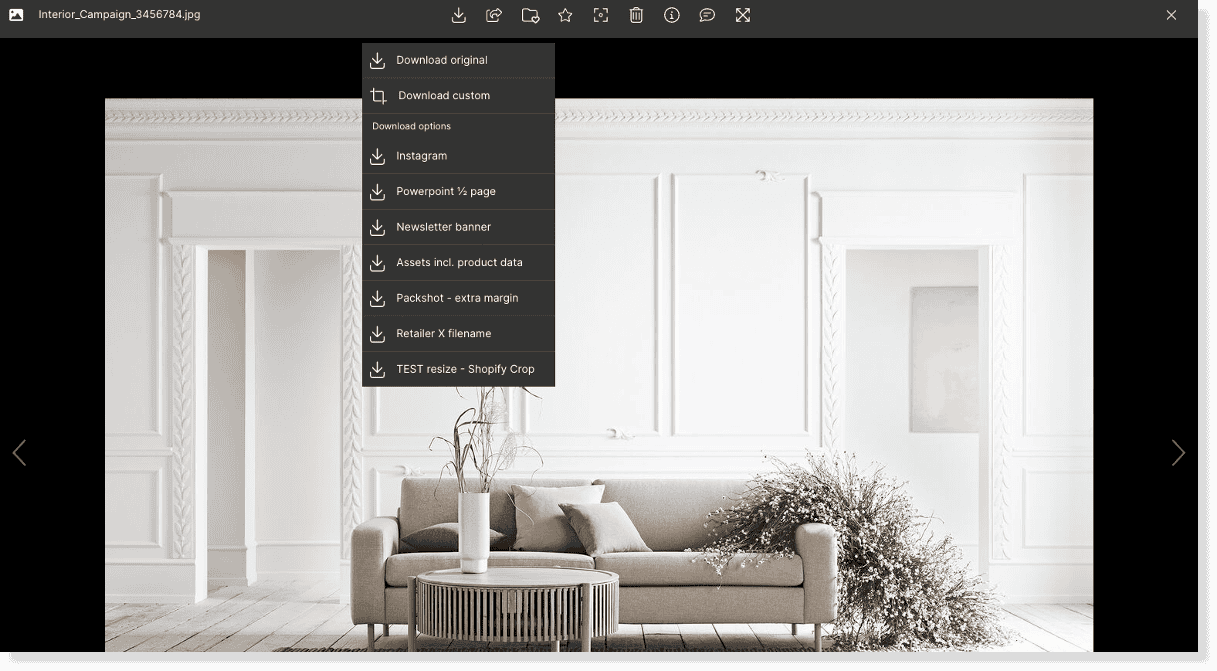
All right, let’s move on to what the different download options do.
Direct Download
Files
Direct download fetches the files with their original format and size.
Access this option as shown above or simply by hovering over a file and clicking the download icon on a file’s thumbnail.
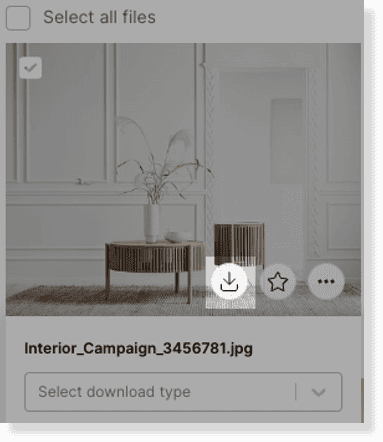
Folders
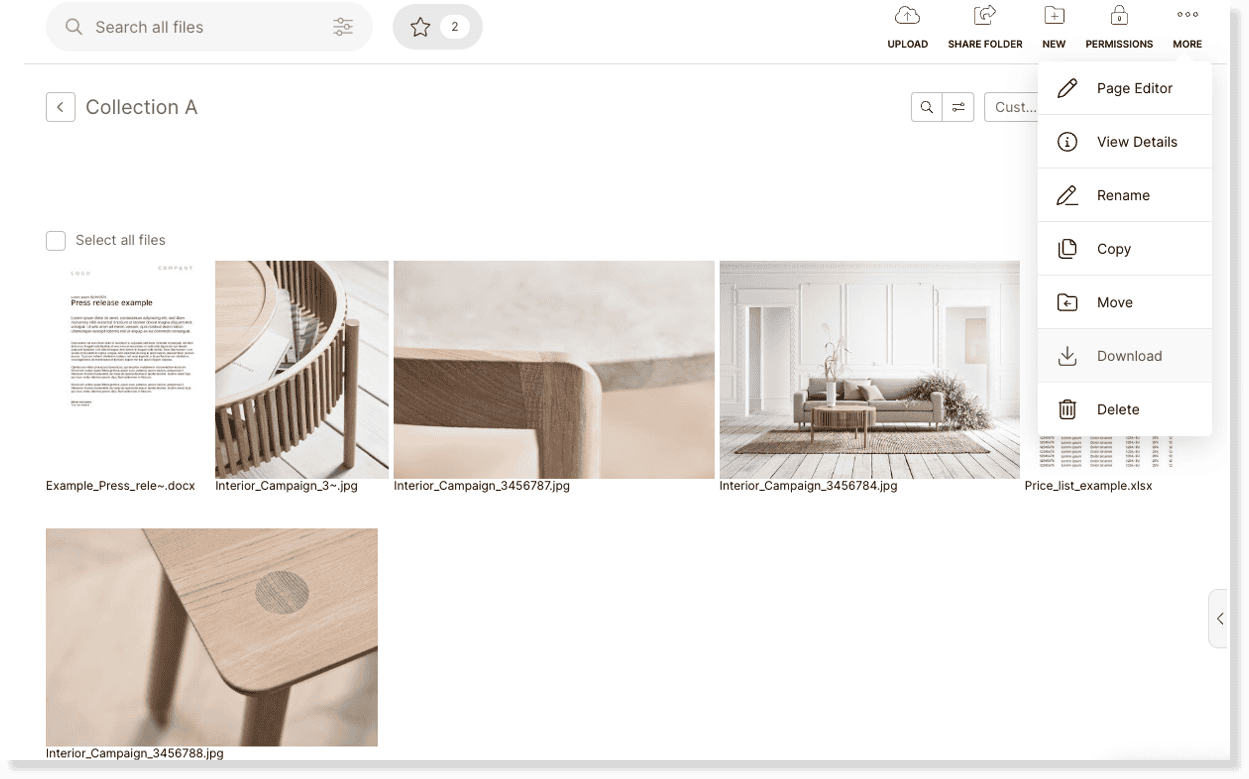
You can also directly download all original files in entire folders.
Go to the more menu in the upper right corner and click on download.
Custom Download
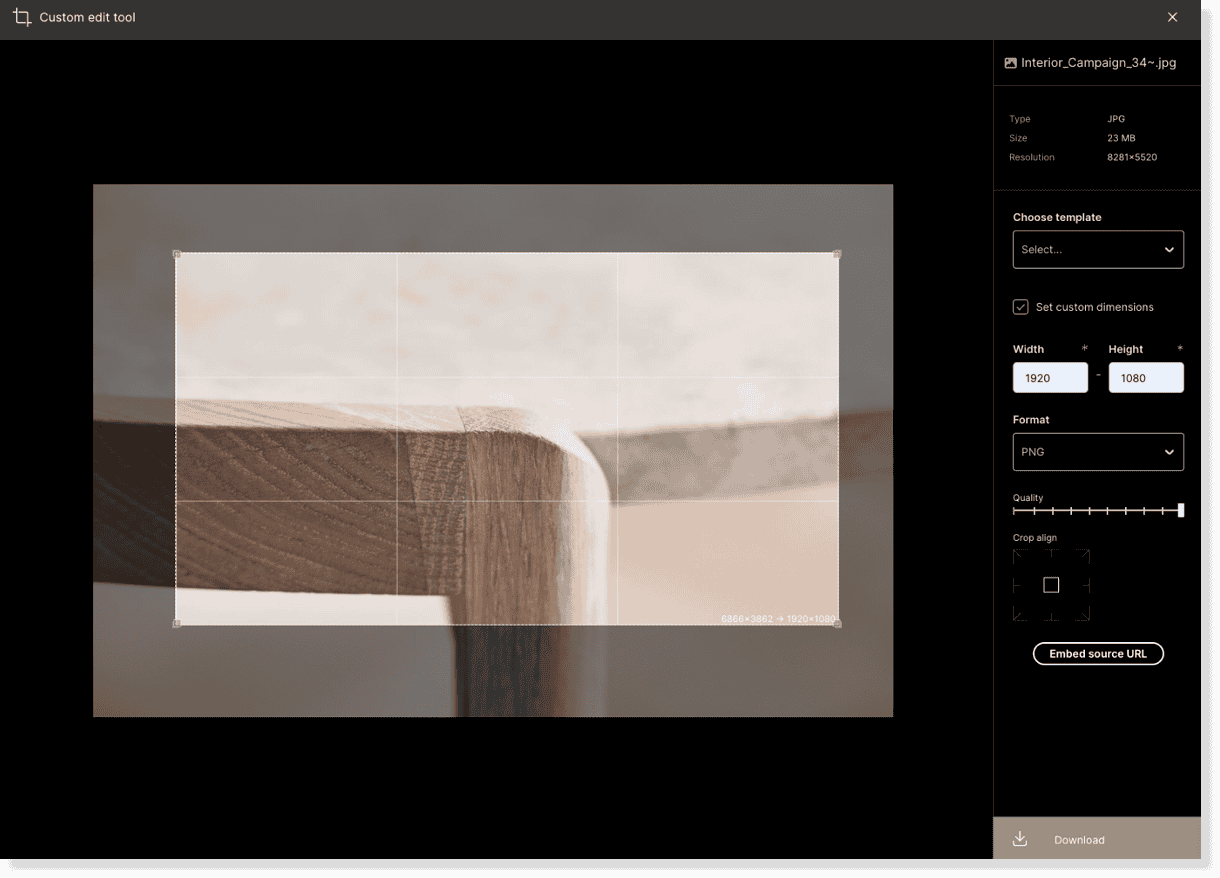
Use the custom download to set specific download settings on the flight – for the specific files you want to download.
In the custom download settings, you can:
- Set custom dimensions
- Choose file format (png, jpg, bmp, webp)
- Set the quality (e.g., possibly compress an image)
- Choose where to align the cropped area
Download templates
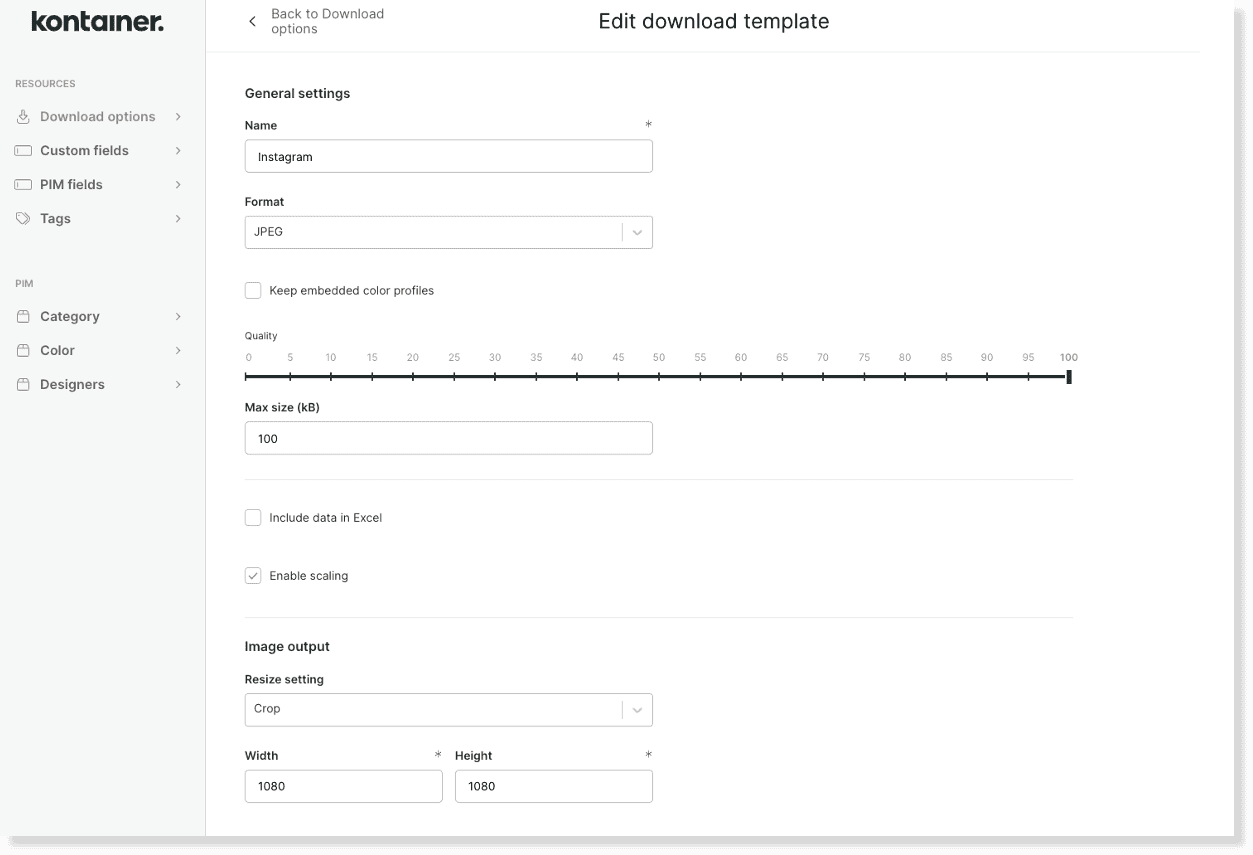
If you have some recurring formats that you often use for your different channels, download options are a good idea.
Create download templates, e.g., for SoMe channels, newsletter and webpage banners or pack shots on different marketplaces.
Create new Download templates under Resources > Download templates and choose them directly when downloading a file.
See the complete guide on Download templates HERE.
Compress images
By choosing custom downloads and download templates, you can download compressed file versions without creating duplicates in your Kontainer.
Several channels, such as SoMe, your website, newsletters, or reselling partners, need files in a smaller size and resolution.
Compress with custom download
You can set a lower quality to compress the file in the custom download interface.
Compress with download templates
When setting up download templates, you can choose a maximum size and set the images’ quality in percent.
Both options will compress your files accordingly.
______
That’s it, really.
Get in touch if you have any unanswered questions.
