
Reformat pictures to suit your needs. Save time with a one-click custom download.
Kontainer is on a mission to eliminate messy duplicates. No more looking for "version 36", "low_res", "final", "final_1", "final_final", etc.
This custom formatting tool works with one original.
TEST
STUBBE
From one original, you can
- make a JPEG, PNG, BMP and WEBP
- Quality 0-100
- Set max sizes
- Include tagged data and file info
- Crop manually or automatically
- Resize
- Add inner margin
- Set naming conventions
- Download or get a source URL
Instead of storing multiple versions of the same image, you can download or use a single picture in various ways.
See the video above or read the article below to learn about Download Templates.
In this Article
- What Are Download Templates
- What Are Typical Uses?
- How-to: Set Up Download Templates
- Set-up Permissions
- How-to: Use Download Templates
- Extra Feature: Prerender Images
- Extra Feature: Focal Points
- Standard Sizes & Guides
What Are Download Templates
Download Templates are formatting conventions. Meaning; that no matter the specifications of an original asset, you download or use it online in the format you need.
You can make as many templates as you want. You grant user-specific access individually or by user group. There is no need to store different file types for different users. One original picture can serve everyone.

What Are Typical Uses?
Let's look at a few examples. Go into a folder and select one or several images. Then, hover over a picture to see the download drop-down menu. Or find the download options in the top menu. From the download templates available, you can select a suitable format. E.g., if you have big TIFF or PSD files in Kontainer, you might want to download them as lower res JPEGs or PNGs.
You can choose to include an Excel sheet with file data and info. Further, there is an option to set naming conventions. That can be useful for partners and other sales channels.
Typical uses are:
- Social Media
- Newsletter
- Lower res
- Websites and shops
- Partners
- Distributors
- Online market places
- Integrations
The last one there is very useful. Kontainer can deliver images automatically to your webshop.
How-to: Set Up Download Templates
So how do you set these lovely things up? It is entirely straightforward. Here is a quick step-by-step guide.
Step 1
Create a new Download Template
Login to your Kontainer. Find Resources in the left menu. Select Download Templates if not already selected in the submenu that appears. Now you can click on Create New in the top right corner.
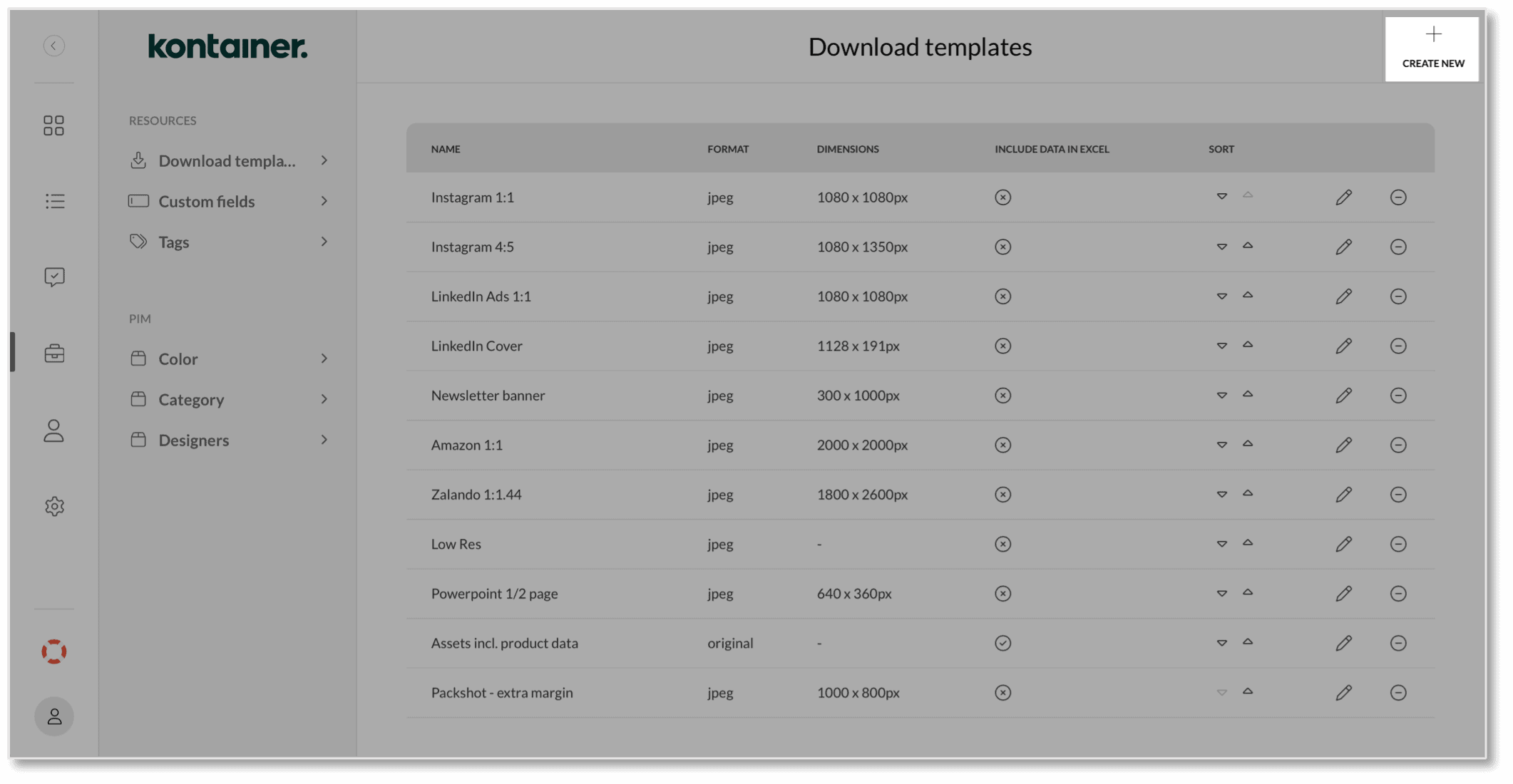
Step 2
Define your new template
Go through the form and fill out the fields relevant to the template you are creating. Remember to press Save at the end.
Most of the fields are self-explanatory. A few have further explanations below.

Enable Scaling
We have a few different options for cropping and scaling your image.
- Crop – e.g., for Social Media templates. This option lets you crop the image before you download or use it.
- Resize Proportionally – e.g., for Distributor templates. This option will only resize to a max width or/and max height. It is possible to specify an inner margin as well.
- Resize to a Fixed Size – e.g., for a webshop template. This option can resize width and height and extend the image background color if needed. You can also here add an inner margin. Use it to add space around a logo or a product shot cropped tightly around the motif.

Enable Naming Template
(Premium and Enterprise feature)
These could be useful for a partner who requires a specific naming convention. The system could automatically fill that out for you. You can add a mix of free text and tagged information from your files.
Please remember not to use full stop "." in a naming template. It will confuse the system. Full stop is the prefix for the file type. E.g., "summer_shirt.jpeg" tells the system it is a JPEG.

By using the above naming convention, all the downloaded images get the filename ''amazon,'' followed by tagged information, ''amazon_[EAN number]_[Collection]_[Material]''

Step 3
Set Permissions
Once you have created your download templates, you can give access to them via the Access tab in the left menu. You set permissions on a single user or a user group. The procedure is the same.
The path is Access, Users/Groups, Download templates.

That's it. You are all set.
How-to: Use Download Templates
Now that you have set up some templates let's look at how you use them. You can select a download template from the drop-down when you hover over an image or from the top menu bars.

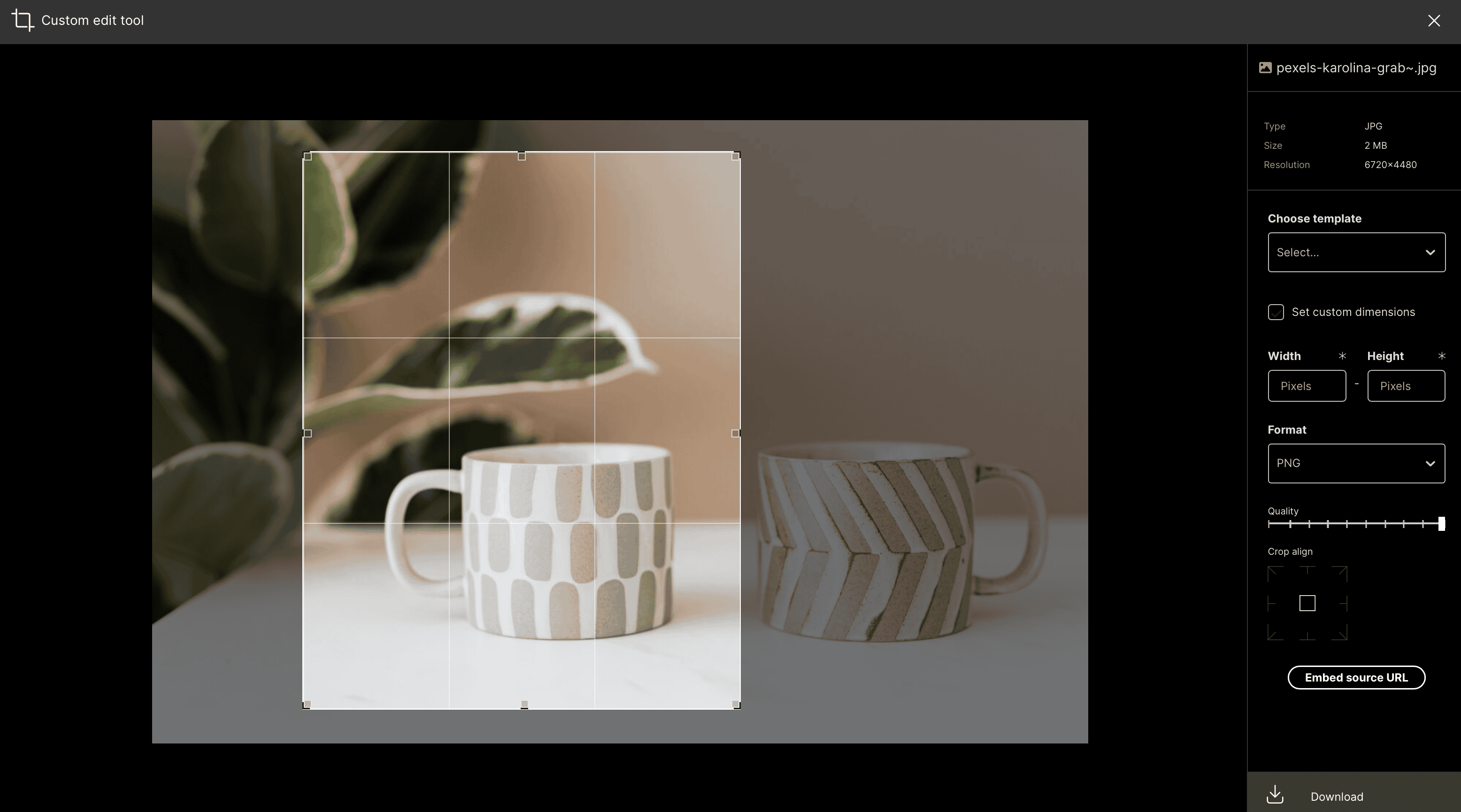
Crop and download/use
If a template uses the crop function, you select the crop before it downloads.
When you are happy with the crop, you can download your file. Or you can get a CDN link (Embed Source URL) for integrations or for pasting into Hubspot, Mailchimp, etc.

Extra Feature: Prerender Images
Download templates are powerful and will reformat your images at your request. In some circumstances, the download will take a little longer. Like when you are compressing large images.
If you have a popular download template that needs a speed boost, we now have a feature called Prerender Images. Tick the box Prerender Images, and the system will prerender a copy of all your images to meet the template specifications.

The prerender does take up space, so keep that in mind. And when you first set it up, the system can take up to 24h to have all your images ready for request.
Extra Feature: Focal Points
You can also speed up formatting by using Focal Points. E.g., if you have an automation from Kontainer to your webshop. You might want images cropped to match content boxes. Focal points can automize that.
The feature is enabled in the template. And the focal points you set on your images manually.

To set the focal point, open a full-screen picture and click on the focal point icon (between the heart and the bin in the image below). Drag the focal point where you want it and Save.

Standard Sizes & Guides
Predefine download templates for popular online platforms so your colleagues and external partners can quickly download images that match their needs.
Below you'll find standard sizes and format guides for:
Do let us know if there is another size guide that would be useful to you, and we'll try and help.
Social Media
2023 standards for social media images:
| Profile photo | 320x320 px | 170x170 px | 400x400 px | 400x400 px |
| Landscape | 1080x566 px | 1200x630 px | 1024x512 px | 1200x627 px |
| Portrait | 1080x1350 px | 630x1200 px | N/A | 627x1200 px |
| Square | 1080x1080 px | 1200x1200 px | N/A | N/A |
| Stories | 1080x1920 px | 1080x1920 px | N/A | N/A |
| Cover photo | N/A | 815x315 px | 1500x500 px | 1128x191 px |
High-res, low-res
Press & print
There is no standard size for high-resolution images, as it varies depending on use. In Kontainer, you can see the conversion from pixel size to print size of 300 dpi.
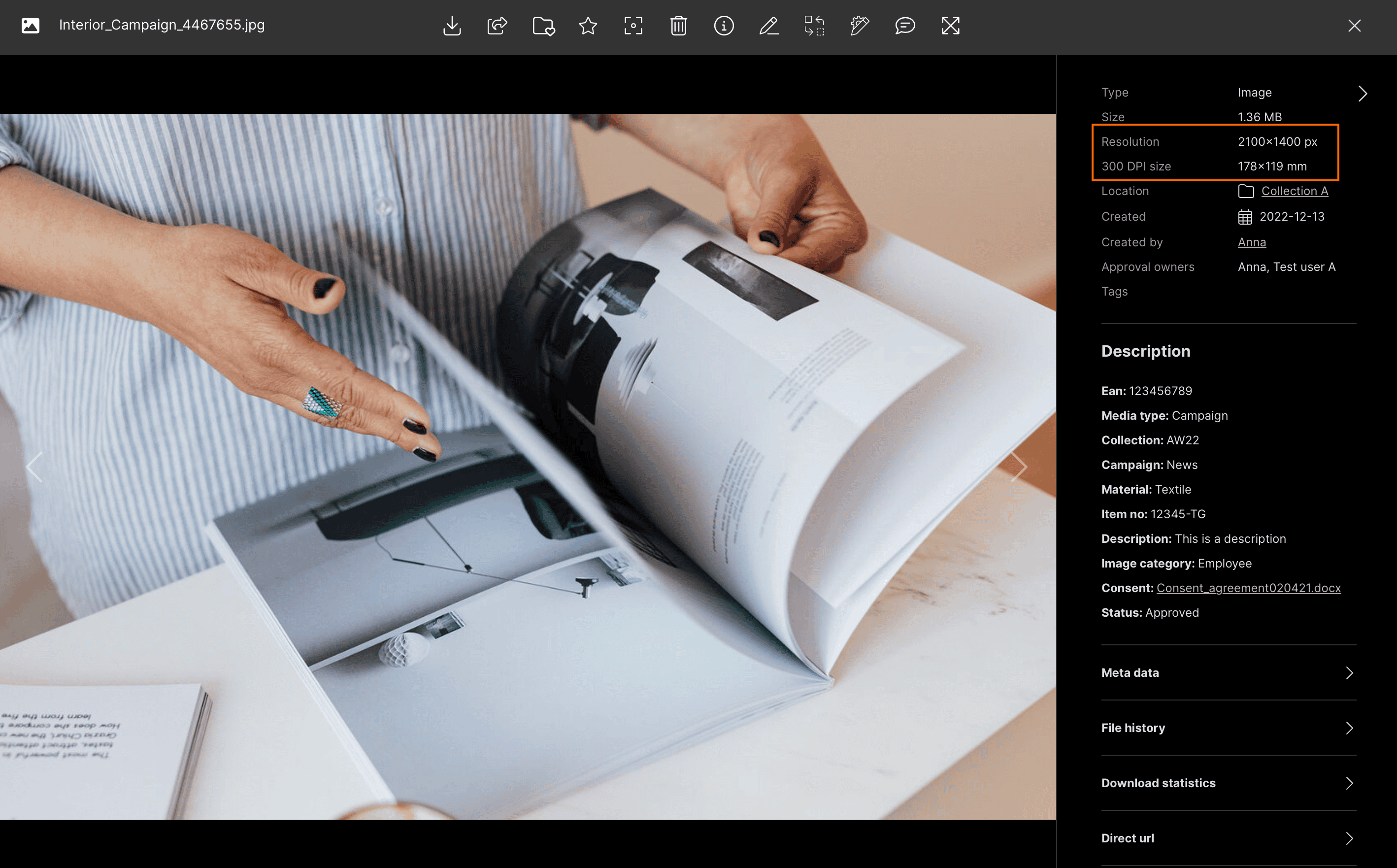
The calculation goes like this:
pixels/dpi = inches
or
pixels*25.4/dpi = mm
Example:
- Aspect ratio 3:2
- 1200x1800 px
- 100 dpi sizes: 12x18 inches or 305x457 mm
- 300 dpi sizes: 4x6 inches or 102x152 mm
Digital images
Again, the sizes you need for digital images depend on the content box it needs to fit. Today most CMSs compress images upon upload, but as a rule, you could set up a max size of:
2000x2000 px
Or
1200x1200 px
The size needed would rarely supersede those measurements.
Shopify
The preferred format for images uploaded to Shopify is JPEG or PNG. Optimal images sizes are:
- Product image = 2048 x 2048 px
- Collection image = 1024 x 1024 px
- 16:9 = 1920 x 1080 px
- 3:2 = 1920 x 1280 px
- Favicon = 32 x 32 px
- Logo Landscape = 450 x 250 px
- Logo Square = 250 x 250 px
Marketplaces
Amazon
- Preferably JPEG (.tiff, .gif and .png also allowed)
- 2000x2000 px
- Product ID (naming convention = productid.jpg)
- sRGB color profile
- Product 85% of image
- Max 10MB
Facebook Products
- 1024x1024 px
- JPEG / PNG
- 8 MB
- sRGB color profile
Zalando
Model images
- 1800 x 2600 px (w x h)
- JPEG
- sRGB color profile
- Background color: R:241; G:241; B:241
Packshot images
- 1800 x 2600 px (w x h)
- JPEG
- sRGB color profile
- Background color: R:255; G:255; B:255
Etsy listing images
- 2667 x 2000 px (w x h)
- Max size 1000kB
- sRGB color profile
- Other sizes for Etsy
Asos Marketplace
- 870 x 1262 px (w x h)
- sRGB color profile
PowerPoint
Standard sizes of images for PP slides.
| Full page | 1/2 page portrait | 1/4 page landscape | |
|---|---|---|---|
| Standard 4:3 slides | 1024x768 px | 512x768 px | 512x384 px |
| Widescreen 16:9 slides | 192 x1080 px | 960x1080 px | 960x540 px |
Do you need anything else?
Is another size guide that would be useful to you? Let us know, and we'll try and help.
